If you are practising chart reading or back-testing setups historically, the Replay Mode in MotiveWave Community Edition is exactly the tool you need. And yes — smooth, continuous playback that feels like a live market is available in the free Community Edition, with no upgrade required. You just need to know where to look.
How to activate Replay Mode
- From the top menu: View → Replay Mode (or the button on the right side of the toolbar)
- The Replay control bar appears at the bottom of the chart
- Select the date and time where you want playback to start
- Click the power button (⏻) — the chart jumps back to that date
The Replay toolbar buttons
The Replay bar has five buttons:
| Button | Function |
|---|---|
| ⏮ Rewind | Restart playback from the beginning |
| ▶ Play | Step forward by 1 tick |
| ⏭ Forward | Jump to the end of the current bar |
| ⏩ Fast Forward | Continuous smooth playback — the chart advances on its own |
| ⏹ Stop | Stop continuous playback |
Fast Forward is what you are looking for. Click it and the chart begins advancing tick by tick on its own, simulating a moving market.
How to control the speed (Tick Delay)
In Replay Settings (the ⚙ icon on the right of the Replay bar) you will find Tick Delay (ms) — the pause between each tick during Fast Forward playback.
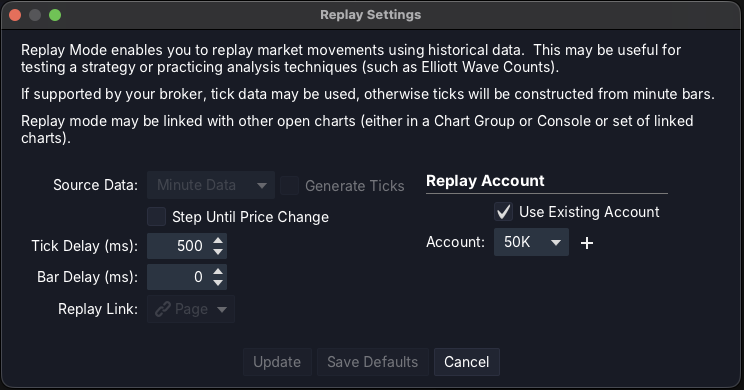
| Tick Delay | Effect |
|---|---|
| 0 ms | Maximum speed — flies through |
| 50–100 ms | Fast playback |
| 200–300 ms | Medium speed, easy to follow |
| 500 ms | Relaxed pace, one tick every half-second |
| 1 000 ms | Slow, one tick per second |
Recommended setting for practice: 200–500 ms, depending on how much time you want to react to each bar.
⚠️ Important: Tick Delay changes are not applied while replay is running
This is the most common stumbling block: you enter a new Tick Delay value, click Update — and the replay keeps running at the same speed as before.
Why: MotiveWave applies the new Tick Delay only when a fresh replay session starts, not while one is already running.
The correct procedure after changing Tick Delay:
- Stop playback (⏹ Stop)
- Disable Replay Mode — click the power button (⏻) to return the chart to live mode
- Re-enable Replay Mode — pick your date and click ⏻ again
- Start ⏩ Fast Forward — it will now run at the new speed
Only this full disable → re-enable cycle applies the new Tick Delay.
What Community Edition does not have
Real Delay and Speed Factor — settings you will see in the MotiveWave documentation — are not in the Community Edition. They are part of the paid premium editions.
In practice: CE has no true real-time or multiplied-real-time replay. Tick Delay is a simpler but reliable substitute — instead of "play back at 2× real speed" you set a fixed pause in milliseconds. For chart-reading practice this is fully sufficient.
Data source: what affects replay quality
Community Edition generates ticks from Minute Data (each minute = 4 ticks: Open, High, Low, Close). This works, but the playback movement is less granular than with real tick data.
For more detailed replay you need:
- Tick Data — a broker or feed that provides historical tick data
- Or enable Generate Ticks in Replay Settings — MotiveWave synthesises additional ticks per minute
Step-by-step summary
- Activate Replay Mode (View → Replay Mode)
- Set Tick Delay in ⚙ Replay Settings (recommended: 200–500 ms)
- Click Update and disable then re-enable Replay Mode
- Select a start date, hit ⏻ and press ⏩ Fast Forward
- Stop at any point with ⏹ Stop, then resume again with ⏩
FAQ
Does MotiveWave Community Edition have smooth chart replay?
Yes. The Fast Forward (⏩) button in the Replay bar starts continuous tick-by-tick playback. Speed is controlled with the Tick Delay setting in milliseconds in Replay Settings.
Why did the replay speed not change after I set a new Tick Delay?
Because MotiveWave applies the new Tick Delay only when a fresh replay session starts. Stop playback, disable Replay Mode with the power button (⏻), then re-enable it with your chosen date — and only then start Fast Forward. That restart cycle is what makes the new speed take effect.
Where are Real Delay and Speed Factor in Community Edition?
They are not in Community Edition — those settings are only available in MotiveWave's paid premium editions. In CE, Tick Delay in milliseconds is the substitute for Speed Factor: a smaller number means faster playback.
What Tick Delay value gives natural-feeling playback?
A good starting point is 200–500 ms. At 500 ms you have half a second to read each tick. For rapid back-testing try 50–100 ms. For very slow step-through, 1 000 ms or higher.
Can I place trades and test strategies in replay mode?
Yes. MotiveWave has a Replay Account — a simulated account where you can enter orders directly in replay. Configure it in the Replay Account section of Replay Settings by choosing an Account ID and opening balance.
Using MotiveWave Community Edition and want to add footprint, CVD and a liquidity heatmap to it? WyckFlow is a bundle of order-flow studies built for exactly that — 14-day free trial with no card, two studies free forever.