
Install & activate, step by step
From download to a live chart — how to install the bundle into MotiveWave, activate your licence and add a study to the chart. It takes a few minutes and needs no technical skills.
Before you start
MotiveWave installed
The free Community Edition is enough. If you don't have it yet, download and install it from motivewave.com and launch it once.
A WyckFlow account
Sign in to your account — that's where the JAR download and your licence key live.
A licence or trial
A free 14-day trial starts the first time you add a study. Your licence key then unlocks every study in your plan — entered just once.
Download the bundle and copy your licence key
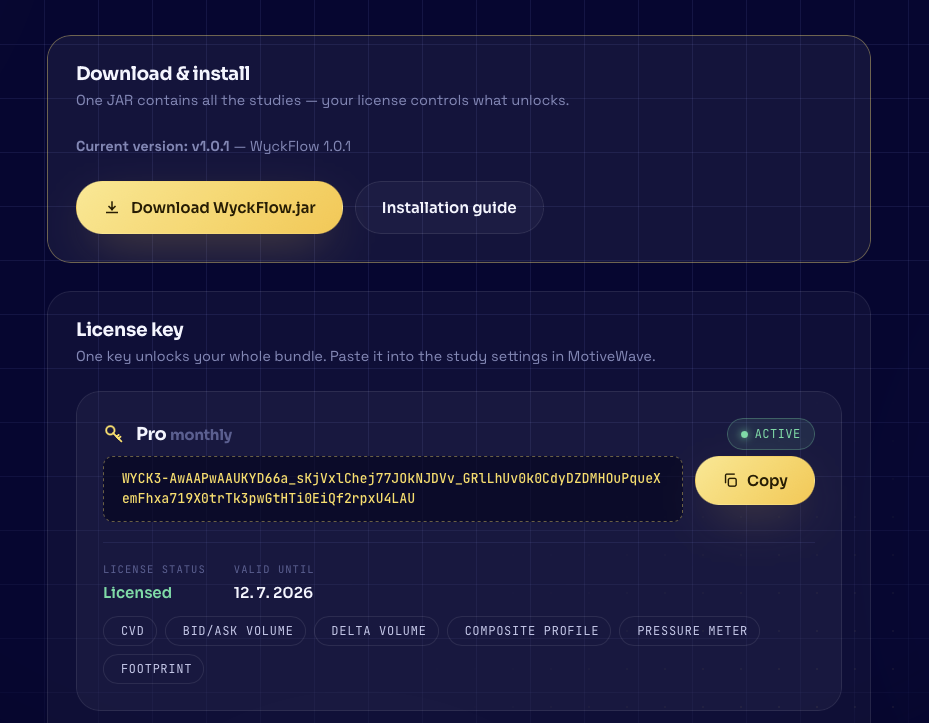
Sign in to your account on wyckflow.com. Under “Download & install” click Download WyckFlow.jar — you get a single WyckFlow.jar file that contains every study.
Just below, under “My licenses”, you'll find your key — it starts with WYCK3- and is one longer block (~100 chars). Click Copy (it copies the whole key) — you'll need it in step 5.
Copy the JAR into the MotiveWave extensions folder
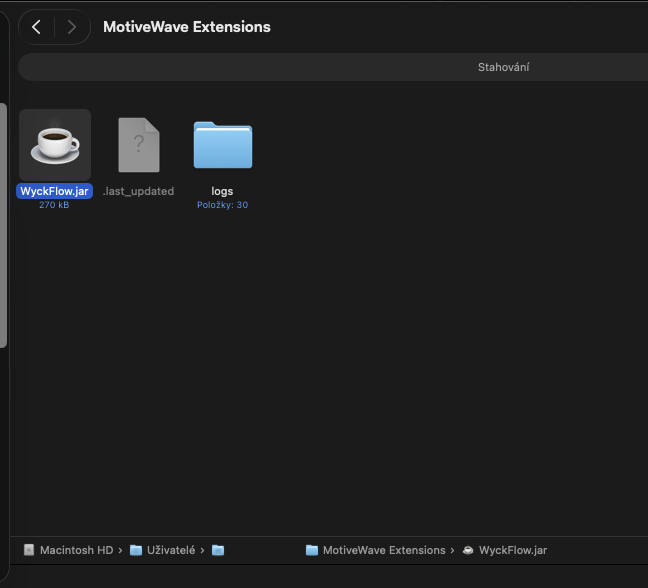
MotiveWave loads extensions from a single folder, MotiveWave Extensions, in your home folder — i.e. ~/MotiveWave Extensions/. Copy the downloaded WyckFlow.jar there.
Don't create the folder yourself — MotiveWave creates it automatically the first time it starts. If it's not there, MotiveWave either isn't installed yet or has never been launched — start it once and try again.
Your browser sometimes saves a second download as WyckFlow (1).jar. Keep only one WyckFlow file in the folder — delete or overwrite the older one.
MotiveWave loads extensions from a single folder, MotiveWave Extensions, in your user folder — i.e. C:\Users\YourName\MotiveWave Extensions\. Copy the downloaded WyckFlow.jar there.
Don't create the folder yourself — MotiveWave creates it automatically the first time it starts. If it's not there, MotiveWave either isn't installed yet or has never been launched — start it once and try again.
Your browser sometimes saves a second download as WyckFlow (1).jar. Keep only one WyckFlow file in the folder — delete or overwrite the older one.
Restart MotiveWave
MotiveWave only loads extensions at startup. Quit it completely and reopen it — only then do the new studies appear. Closing just the chart isn't enough.
On a Mac, closing the window with the red dot does NOT quit the app — MotiveWave keeps running in the background. Use Cmd+Q (or the MotiveWave → Quit menu), then reopen it.
Add the “WyckFlow License” study to a chart
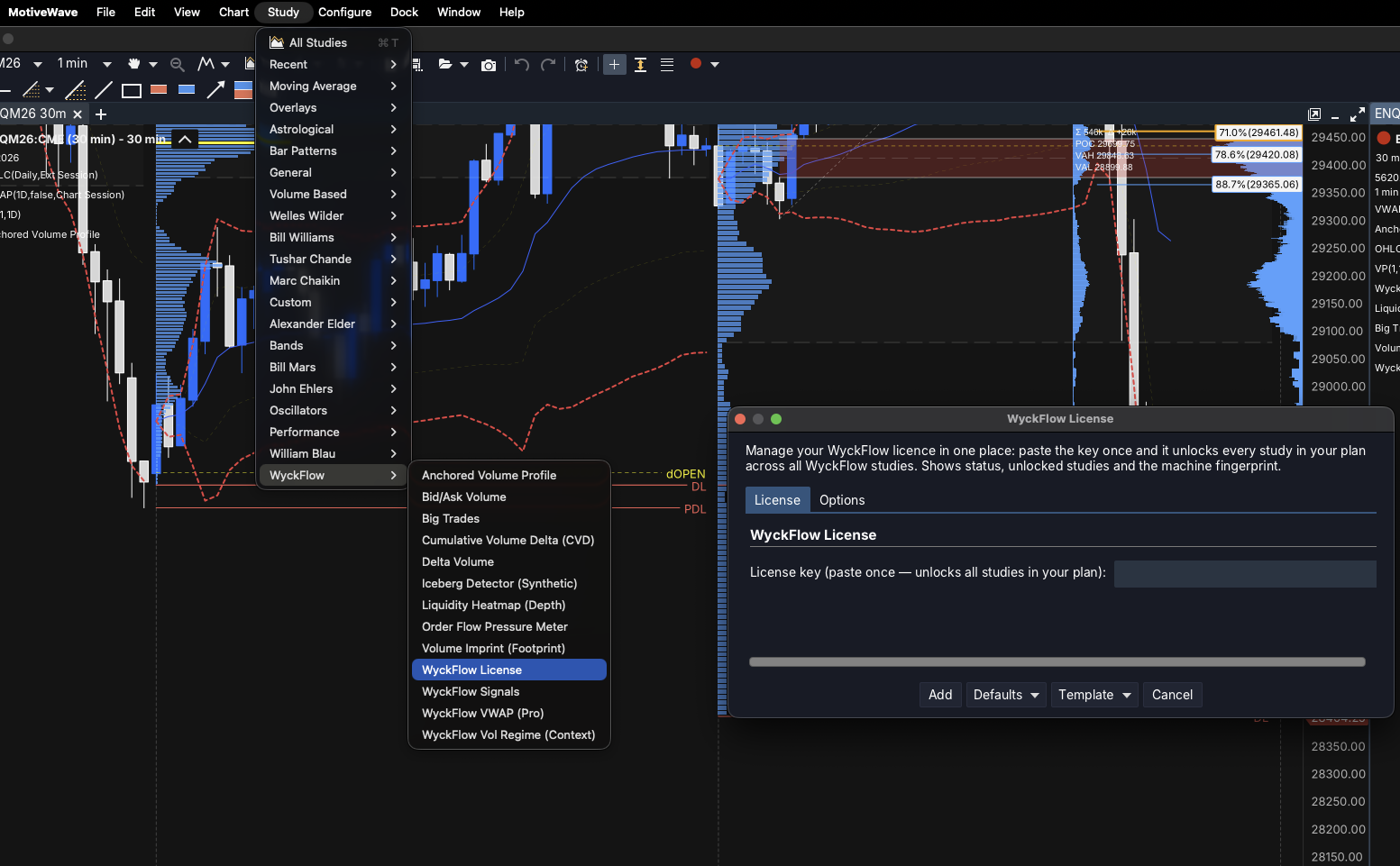
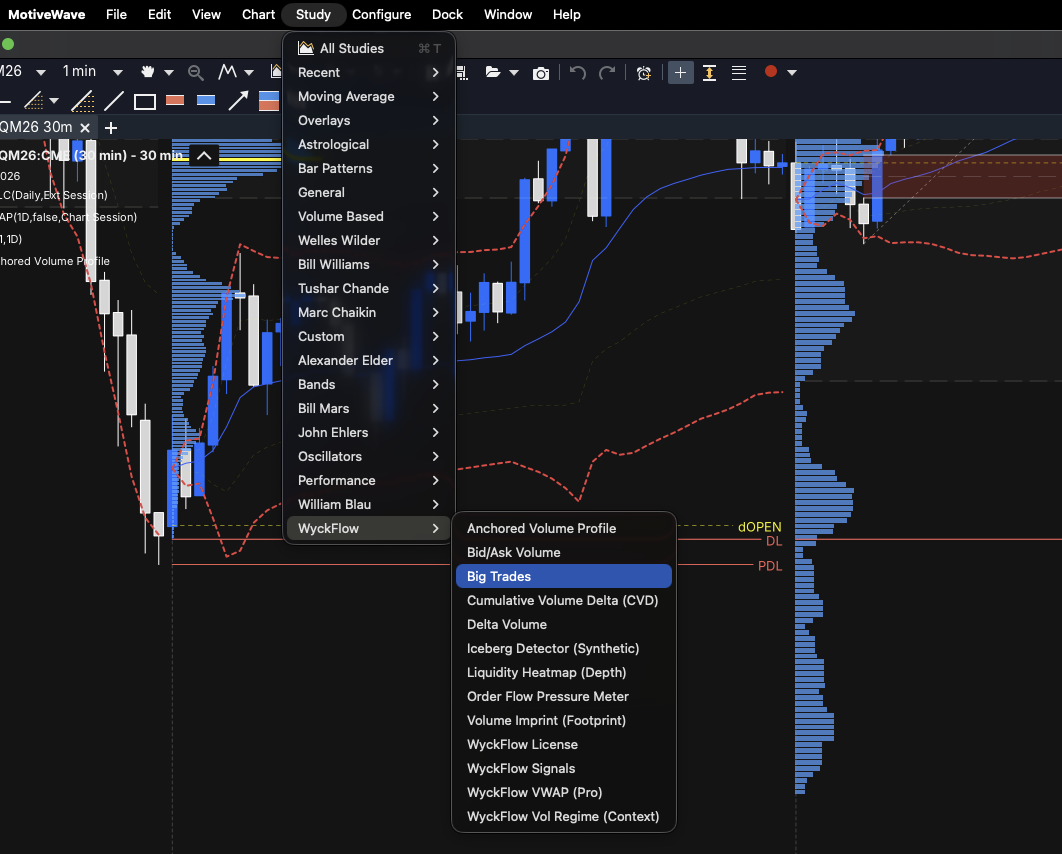
Open any chart. In the top menu click Study (or the fx / Studies icon in the toolbar) and open the study list.
Find the “WyckFlow” group and pick WyckFlow License. Add it to the chart — a small panel showing your licence status appears.
Paste your licence key and save
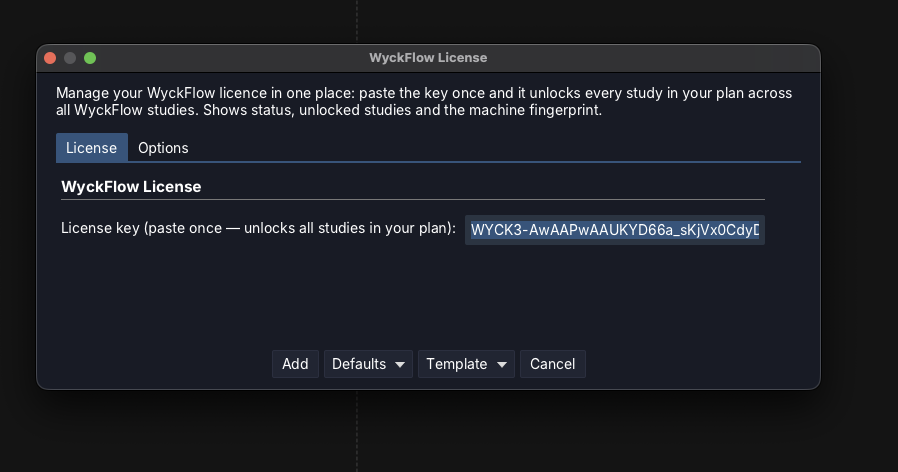
Open the WyckFlow License study's settings (double-click the panel, or the gear icon). Paste the key you copied in step 1 into the License Key field and confirm with OK.
The key is saved once and every other study picks it up automatically — you don't enter it per study. The panel should now read Licensed (or Trial if you don't have a key yet).
Add an order-flow study to the chart
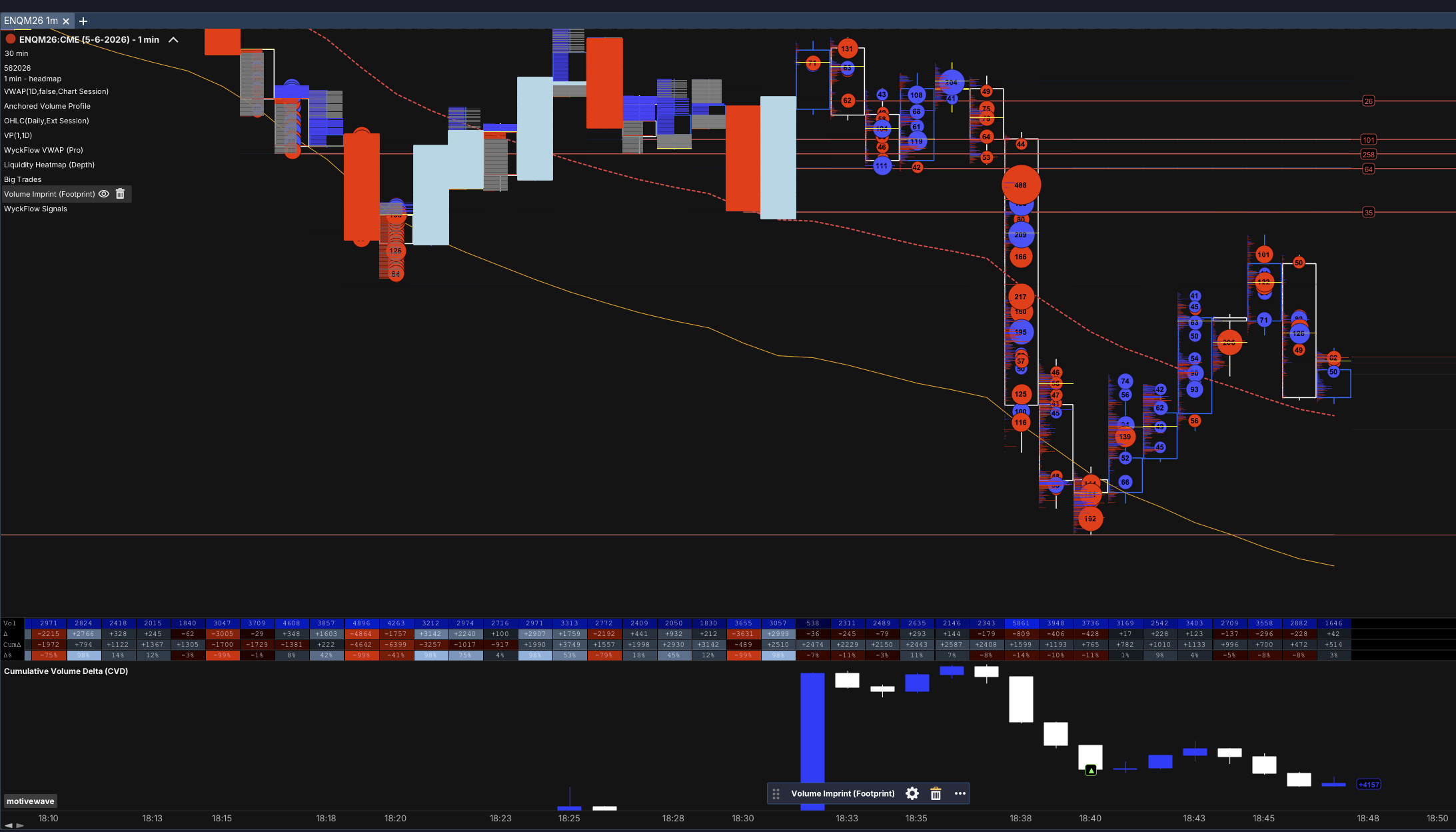
The same way as in step 4, add any study in your plan — e.g. Volume Imprint (footprint), Liquidity Heatmap, Cumulative Volume Delta, Big Trades and more. They're all in the “WyckFlow” group.
A study you're licensed for renders straight away. A study outside your plan runs in a limited mode and offers an upgrade.
Configure the study to your taste
Each study has its own settings (colours, thresholds, sensitivity, per-market presets). Open them by double-clicking the study or via the gear icon. Recommended values per market (ES, NQ, CL, micros, crypto) are in each study's detail in the catalogue.
When something doesn't work
The studies don't show up in the menu
Check that WyckFlow.jar is really in the “MotiveWave Extensions” folder (exact name, in the right home/user folder), then quit and reopen MotiveWave completely. Closing only the chart isn't enough.
I have both WyckFlow.jar and WyckFlow (1).jar in the folder
That's how your browser names a second download of the same file. Keep only one WyckFlow file in the “MotiveWave Extensions” folder — delete the extra one and restart MotiveWave.
A study shows a lock or “Unlicensed”
Open the “WyckFlow License” study and check the whole key is there (it starts with WYCK3-) with no extra spaces. After saving, give it a moment or remove and re-add the study. Your key is in your account.
I still see the old version after updating
Replace the old WyckFlow.jar with the new one (same name, overwrite) and restart MotiveWave again. Your current version is shown in your account and in the changelog.
Some studies ask for market-depth data
The Liquidity Heatmap and Iceberg Detector need market-depth (DOM / Level 2) data from your data provider. Depth also has no history — it's recorded forward from the moment you open the study. See those studies' detail pages for more.
All set?
Grab the latest JAR and find your licence key in your account, or browse the study catalogue.